Tax & VAT
Xaldro applies tax using your provider's own tax codes, so the tax on each invoice matches what your accountant expects, and the invoice total always reconciles to what the customer paid.
How Xaldro applies tax
Webflow prices are tax-exclusive. Xaldro posts your line amounts net, then attaches the mapped tax code and lets Xero or QuickBooks compute the tax itself. Two things follow from this:
- The tax on the invoice is calculated by your accounting system from a real code, not a number Xaldro typed in, so it is always consistent with the rest of your books.
- Xaldro never invents a rate. It only ever applies a code you mapped. If an order charges tax and no code matches it, the order is held (see below) rather than posted with the tax dropped.
Default tax rate
In Settings, map a default sales tax rate per provider, picked from your live Xero tax rates or QuickBooks tax codes. This rate applies to every order unless a region rule overrides it.
If your store charges no tax, leave it unset. If it does charge tax and you leave it unset, taxed orders are held (never posted short by the tax) with a message telling you to set a rate.
Per-region tax rates
Selling into more than one jurisdiction? Add region rules under the same Settings panel. Each rule maps a destination to a provider tax code:
- a country (ISO code, e.g.
GB,US), and - optionally a region/state (e.g.
CA).
When an order comes in, Xaldro picks the most specific match:
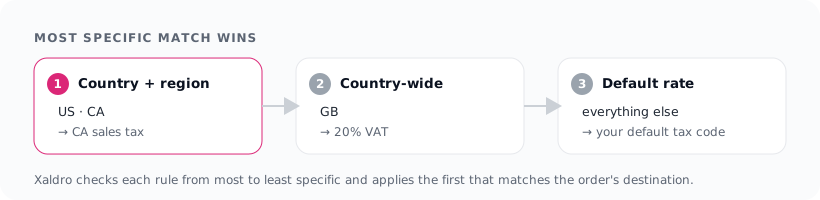
- exact country + region, then
- country-wide, then
- the default rate.
So you might map GB → 20% VAT, US + CA → CA sales tax, and US → your default US rate, and let everything else fall back to the default.
EU VAT and OSS
Selling across the EU? Under the One-Stop-Shop (OSS) scheme a seller charges the destination country's VAT rate, so a sale to Germany carries 19%, to France 20%, to Hungary 27%, and so on. Xaldro handles this through per-region mapping: you map each EU destination country to that country's VAT tax code in Xero or QuickBooks.
To make that quick, the region-rules panel in Settings has a built-in EU VAT (OSS) rates reference: expand it to see every EU country and its standard rate, click a country to fill it in, then pick your provider's matching VAT code. Set one rule per EU country you sell to.
Because Xaldro posts the code and the provider computes the tax, and because Webflow already charged the customer, the reconcile-to-the-cent guard confirms the two agree, if a country's mapping is missing or wrong, that order is held with a clear message instead of posting incorrect VAT.
Rates in the reference are a convenience and can change over time. Keep your provider's tax codes as the source of truth; the reconcile guard will flag any drift.
US sales tax
Webflow calculates US sales tax at checkout. Xaldro's job is to post that tax under the right code in your books, not to recalculate rates. Map each state (or state + region) you charge tax in to the matching Xero or QuickBooks tax code, using a per-region rule, and leave the default for everything else. For automated, address-level US rates inside your accounting system, pair it with your provider's sales-tax add-on (for example QuickBooks' automated sales tax); Xaldro will still post cleanly as long as the mapped code's tax matches what Webflow charged.
Zero-rated and tax-free orders
If your store, or a particular order, carries no tax, that is fine: orders with no tax post cleanly with no code needed. If you want an explicit zero-rated or exempt treatment (rather than "no tax"), map a zero-rated / exempt code from your provider. The only case that is ever held is an order that charges tax while no matching code is mapped, because posting it would leave the invoice short.
Tax is off by a cent
The reconcile guard holds an order when the tax the mapped code computes does not equal the tax Webflow actually charged. The usual causes:
- The mapped code's rate differs from the order's rate (for example the order was taxed at 20% but the mapped code is 21%). Map the code whose rate matches that destination.
- Rounding differences between how Webflow and your provider round per-line tax.
Open the held order to see both totals, then map the code that matches and retry. Xaldro will never post an invoice that is off, even by a single cent, that guarantee is the whole point.
What Xaldro does not do
Xaldro applies the tax codes you map and guarantees the posted total matches what the customer paid. It is not a VAT filing service: it doesn't track OSS registration thresholds, decide where you're liable, or submit returns. Pair it with your accountant or a VAT filing tool for those. The reconcile-to-the-cent guarantee means a mismatch between the tax Webflow charged and the code you mapped surfaces as a held order rather than a wrong invoice, so you'll always know to adjust a mapping.