Finding your invoices
Every synced order links straight to its invoice. Here is where to look if you want to open one directly in Xero or QuickBooks.
From Xaldro (fastest)
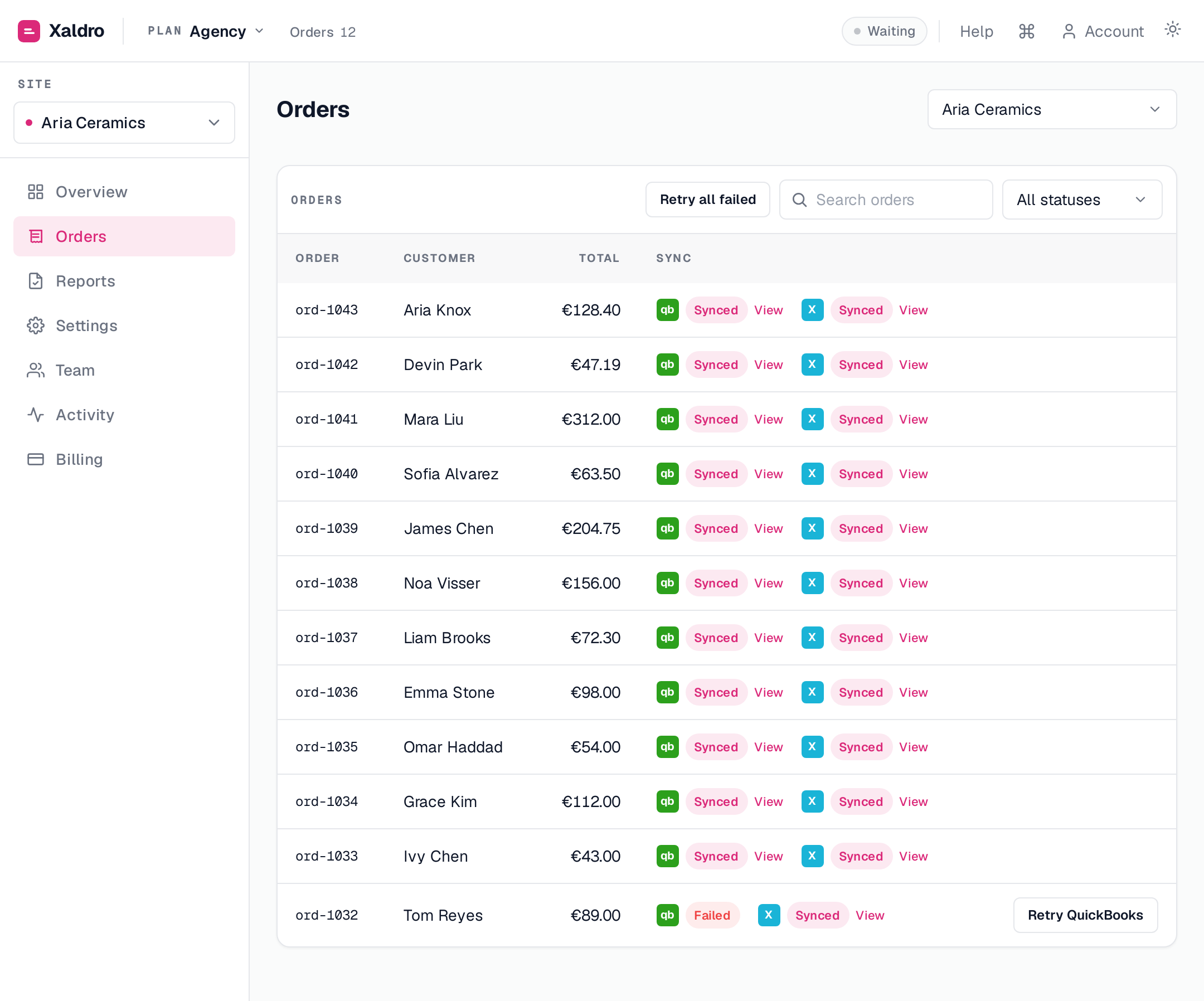
Open the Orders screen, find the order, and click View next to its Xero or QuickBooks status, that deep-links to the exact invoice. The order detail also shows both providers' status and links side by side.
In Xero
Synced orders appear as approved invoices (not drafts):
- Business , Invoices , look under Awaiting Payment, or Paid if you mapped a clearing account.
- Or open the customer's contact to see all their invoices.
- Search by Reference, it is the Webflow order number (e.g.
1043).
In QuickBooks
- Sales , Invoices , the order appears as an invoice, marked Paid if you mapped a clearing/deposit account.
- Or open the customer to see their invoices.
- The Webflow order number is on the invoice for tracing.
"It synced but I can't find it"
- Check the status filter. A Paid invoice is not under "Awaiting Payment", switch the filter to All or Paid.
- Check the right organisation / company. If you connected more than one, make sure you are looking at the one this site is mapped to.
- Confirm it actually synced. On the Orders screen the status is the source of truth. A held or failed order has not posted yet, open it for the reason. See Troubleshooting.
Refunds
A refund appears as a credit note in Xero, or a credit memo in QuickBooks, allocated to the original invoice. See Refunds & edited orders.