If you sell on Webflow Ecommerce and keep your books in QuickBooks Online, you have probably hit the gap: Webflow takes the payment but does not post the order to QuickBooks. The official answer is “use Zapier or Make,” which works in a demo and quietly breaks on real carts.
This guide covers the clean way to connect Webflow Ecommerce to QuickBooks Online: what a proper connection does, how to set it up, exactly how a Webflow order maps into QuickBooks, and how to keep every invoice reconciled to the cent.
What a proper QuickBooks connection does
The goal is to write real invoices, customers and credit memos inside your own QuickBooks Online company. Not a mirror kept in some third-party tool, not a spreadsheet import, actual QuickBooks records that live in your books.
Here is the test that matters: if you removed the integration tomorrow, everything it created stays in QuickBooks, untouched. That is the line between an integration and a data silo, and for accounting it is the thing that matters most, because your books must outlive the tools that fill them.
The setup, step by step
Setup takes a few minutes, and the mapping is a one-time decision.
- Connect your Webflow site. Authorise read access to your store’s ecommerce orders. No Designer changes, no code, and read-only, so it can never change your store, products or customers.
- Connect QuickBooks Online through Intuit’s own secure sign-in (OAuth). You never hand over a QuickBooks password; you approve the connection inside Intuit and can disconnect it there whenever you like.
- Map your accounts once. Choose which QuickBooks accounts orders post against: an income account for product revenue, a shipping account (or fold it into revenue), a deposit or clearing bank account for payments, and your QuickBooks sales tax. The mapping only offers the right account type for each field, so your revenue account cannot accidentally point at a bank account.
- Choose a backfill window. On connection, recent orders are imported so your books are current, with the option to pull back further on demand.
After that, new orders post automatically and you only handle exceptions.
Exactly how a Webflow order maps into QuickBooks
A Webflow order is a structured object, and QuickBooks has its own way of representing sales, so the mapping has to be done properly.
- One invoice per order. Each Webflow order becomes a single QuickBooks invoice.
- One line per product, with the item created for you. Every cart line item becomes an invoice line at the correct quantity and unit price. QuickBooks invoices are built from Items, so if a product does not exist yet as a QuickBooks Item, it is created automatically and pointed at your mapped income account. This is exactly the step a single Zap struggles with, because iterating an array of line items into separate records is not what field mapping does.
- Shipping as its own line, posted against your chosen account rather than hidden inside product totals.
- Discounts handled explicitly as their own line, so the invoice breakdown reflects the real order.
- Tax the QuickBooks way. Map the QuickBooks sales tax that applies, and the reconcile guard makes sure the posted tax matches what the order actually charged.
- The Webflow order id on the invoice, so every QuickBooks invoice traces back to its order.
- Customers matched by email. The buyer is found or created as a QuickBooks customer, matched on their primary email (with a display-name fallback), so you do not accumulate duplicate customers.
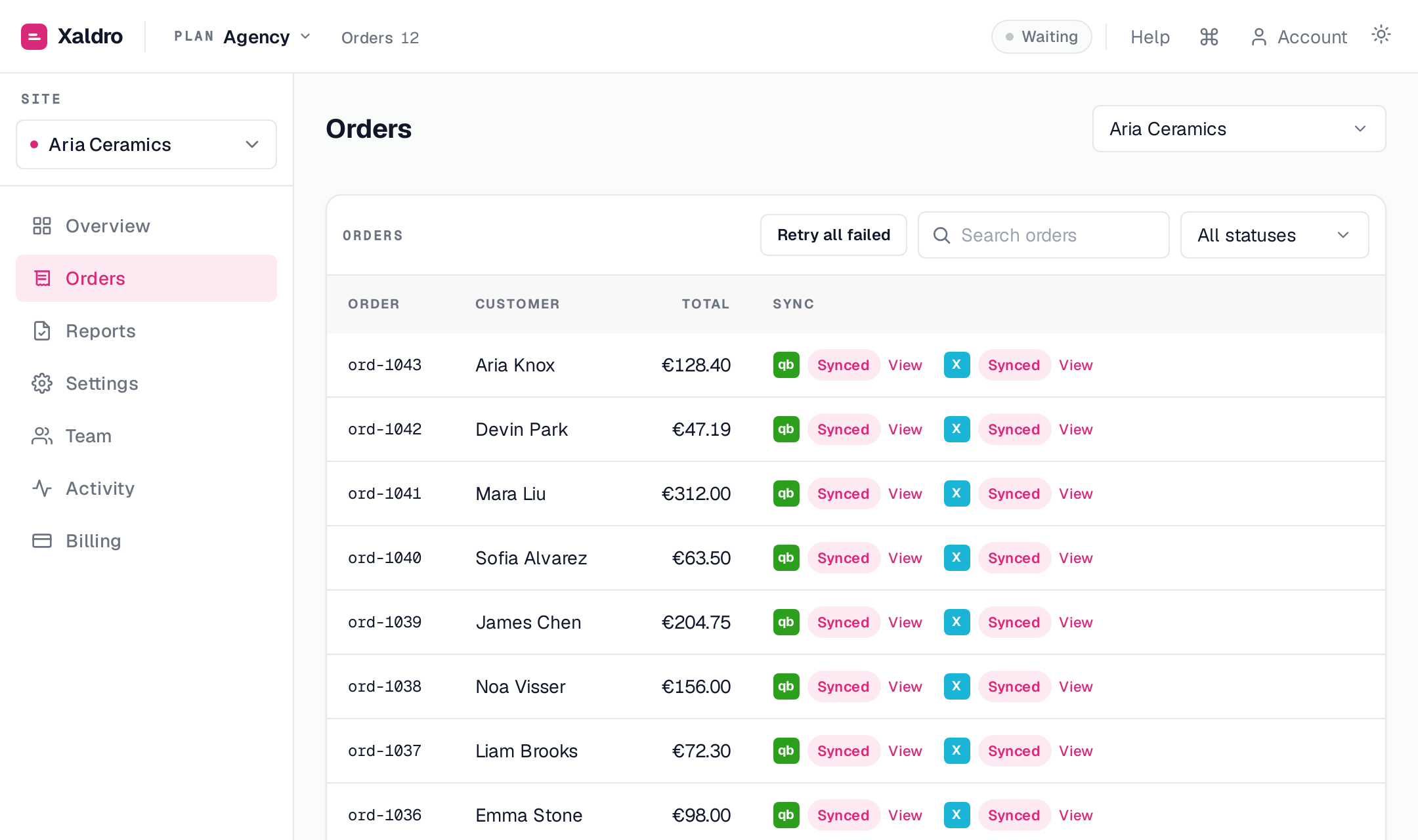
The outcome is a QuickBooks invoice that looks like one you would have entered by hand, generated the moment the order is placed.
Paid, not just invoiced
An invoice sitting open is only half done. If you map a deposit or clearing bank account, the payment is recorded against the invoice so it shows as paid, not as an open receivable. That clearing account is then what you reconcile your Stripe payout against when the cash lands, which keeps month-end tidy.
Leave the clearing account unmapped and invoices still post correctly; they just post as open for you to mark paid yourself.
Refunds become credit memos
Refunds are where most Webflow-to-QuickBooks setups fall over, because an invoice-only flow has nowhere to put money going back out.
When you refund an order in Webflow, a matching credit memo is posted in QuickBooks, allocated against the original invoice, so revenue and receivables come back down by the right amount. A return no longer leaves your books overstating what you earned. (QuickBooks uses a credit memo for this, not a refund receipt, so it nets cleanly against the original invoice.)
Reconciled to the cent, or held with a reason
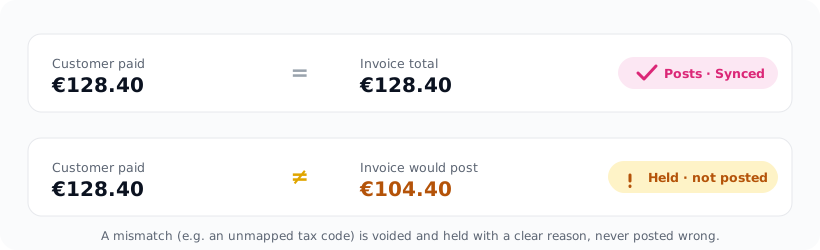
The guard that makes this safe to run unattended: before anything posts, the invoice total is checked against what the customer actually paid. If it does not match, usually an unmapped or mismatched tax code, the order is held with a clear reason rather than posting a wrong number. It never posts the same order twice either, even if a webhook is delivered twice or a sync is retried.
That turns QuickBooks month-end from an audit of everything into a short list of explained exceptions. If nothing is flagged, what posted is known to be correct.
Two QuickBooks specifics we learned building this
A couple of QuickBooks behaviours are worth calling out because they are easy to get wrong. First, QuickBooks enforces a unique customer DisplayName, which sounds harmless until two different buyers happen to share a name. We saw this directly while testing customer matching: match on the display name alone and you quietly merge two real customers into one. That is why matching by email comes first, with the name only as a fallback. Second, because QuickBooks builds invoices from Items rather than free-text lines, the first time a product sells its Item is created for you and pointed at your mapped income account, so you never have to pre-build your whole catalogue in QuickBooks. Both are small details, and both are the difference between an invoice that is right and one that is subtly wrong.
Why not Zapier or Make?
A Zap demos fine and breaks on real orders: it collapses multi-line carts, drops shipping and discounts so the total drifts, usually cannot handle refunds, and can double-post on retries. It also bills per task, and a correct sync is multi-step, so the bill grows with your order count exactly when business is good.
A native QuickBooks connection maps line items into invoice lines correctly, auto-creates items, reconciles to the cent, posts refunds as credit memos, never duplicates, and charges a flat monthly rate.
Getting started
Xaldro connects Webflow Ecommerce to QuickBooks Online exactly as described: real invoices, customers and credit memos in your own QuickBooks company, reconciled to the cent, with items, shipping, discounts and tax handled and the order id on every invoice. It backfills recent history on connection so your books are current from day one.
Pricing is flat monthly, no per-task fees. Start on a 14-day free trial or your first 100 synced orders, whichever comes first, no card required. Point it at a QuickBooks sandbox company first if you want to watch it work before it touches your live books.