Of all the parts of getting Webflow orders into Xero or QuickBooks, tax is the one that quietly causes the most damage. An invoice that is correct in dollars but wrong in tax still posts wrong books, and you usually do not find out until you file. This post covers how Webflow tax should map into your accounting, how per-region rules work, and why matching the tax to the cent is the part that actually protects you.
Why tax is the risky part
A Webflow order total is easy to get right. The tax inside it is not, for two reasons.
First, tax is not a single number bolted onto the order. It is a rate applied to the taxable lines, and your accounting system has its own way of representing that rate: a tax rate in Xero, a tax code in QuickBooks. Posting the right total with the wrong tax treatment still leaves your tax accounts wrong.
Second, the rate depends on where the order is going. A store selling into several US states, or into multiple EU countries, does not have one tax rate; it has one per destination. A setup that assumes a single rate will silently misstate tax the moment an order ships somewhere else.
So the job is not “copy the tax figure across.” It is “reproduce, inside Xero or QuickBooks, the exact tax the customer was charged, for this order’s destination.”
How Webflow tax maps into your accounting
Webflow prices are tax-exclusive, and Webflow records the tax it charged on the order. The clean way to mirror that into accounting is to map, not to copy.
You map your Xero tax rates or QuickBooks tax codes to the orders they apply to. Then, when an order posts, the mapped rate drives the tax your accounting system computes on the invoice lines. Because the invoice is built from the same line items at the same tax-exclusive prices, the tax your ledger computes should reproduce the tax Webflow charged.
That “should” is important, and it is exactly what the reconcile guard checks (more on that below).
Per-region rules: US sales tax and EU VAT
A single default rate covers a simple store. A store selling across regions needs the rate to follow the destination.
The pattern that works is a default plus overrides:
- Set a default tax rate for the common case.
- Add per-region rules that override the default for specific destinations. The most specific match wins: a country-plus-region rule beats a country rule, which beats the default.
For US sales tax, that means mapping the states you have nexus in to the corresponding tax codes, so an order shipping to California picks up the California treatment and an order to a state you do not collect in does not.
For EU VAT, under the One-Stop-Shop scheme you charge the destination country’s rate, so you map each EU destination country to that country’s VAT code in your accounting. An order to Germany posts with the German VAT code, an order to France with the French one. This is you mapping your own rates to your own codes, deliberately, not a black box guessing your VAT position. It keeps you in control of a part of accounting where being in control matters.
If your store only ever charges one rate, you never touch any of this. The per-region rules are there for when you need them.
The part that actually protects you: reconcile to the cent
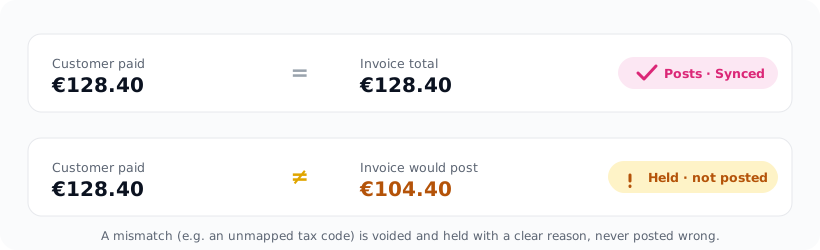
Here is the safeguard that turns tax from a liability into a non-issue. Before an invoice posts, its total, including the tax the mapped rate produced, is checked against what the customer actually paid.
Two things follow from that:
- If an order carries tax but no tax rate is mapped, the invoice would post short by the tax. Instead of posting something wrong, the order is held with a clear message telling you to set your tax rate, then retry. Nothing wrong reaches your books.
- If the mapped rate does not reproduce the order’s tax (say the wrong code got mapped to a region), the numbers will not match, and again the order is held rather than posted incorrectly.
An order only posts when the tax it computes matches the tax the customer was charged, to the cent. That is the difference between hoping your tax mapping is right and knowing it, because the ones that are wrong announce themselves as a short list of held orders instead of hiding in your filing.
The tax-free order that catches people out
Here is a subtle one we ran into testing this, and it is the opposite of what you would expect. Say you map a default tax rate, then a genuinely tax-free order comes through: a tax-exempt customer, or a B2B sale that carried no tax. Naively applying your mapped default rate would make your accounting system add tax the customer never paid, pushing the invoice total above what they were actually charged. We watched exactly that happen on a tax-free test order before we tightened it: the mapped rate got applied, the total inflated, and the reconcile guard voided the invoice because it no longer matched the order. The rule that fixes it is simple: apply the tax code only when the order actually carries tax, so a tax-free order posts tax-free even with a default rate mapped, and the reconcile guard stays as the backstop for anything that still does not line up.
What good looks like at month-end
With tax mapped and the reconcile guard running, month-end tax stops being an audit. Every order that posted is known to match what was charged. Anything that could not post cleanly is sitting in a “needs attention” list with the reason attached, usually a new destination that needs a rate mapped. You map it, retry, and it clears.
No hunting for the order where the tax quietly came out wrong, because that order never posted; it waited for you.
Getting started
Xaldro maps your Webflow orders into Xero or QuickBooks with tax handled the way described here: map your Xero tax rates or QuickBooks tax codes, add per-region rules for US sales tax or EU VAT when you need them, and every invoice is checked so its tax matches the order to the cent or is held with a clear reason. You stay in control of your tax treatment; the guard makes sure nothing wrong ever posts.
Flat monthly pricing, no per-task fees, and a 14-day free trial or your first 100 synced orders, whichever comes first, no card required.