Most people set up a Webflow accounting sync, watch the first invoice appear in Xero or QuickBooks, and call it done. Then a week later they open their accounting system and every synced invoice is sitting under Awaiting Payment, even though the customer paid at checkout days ago. Nothing is broken, but the books are only half right.
There is a real difference between an order being invoiced and an order being paid, and closing that gap cleanly is what separates a sync that looks fine from one your accountant actually trusts. This post covers why synced invoices land unpaid by default, the one setting that fixes it, and how the processor payout that hits your bank fits into the picture.
Invoiced is not the same as paid
When an order syncs, an invoice is created in your accounting system. That records the sale: revenue and a receivable. But the customer already paid Webflow at checkout, so leaving the invoice unpaid is inaccurate, it makes it look like the money is still owed to you.
To reflect reality, something also has to record the payment against that invoice. If nothing does, you end up with a pile of open receivables that never clear, and a bank balance that no longer ties to your ledger.
Why synced invoices land unpaid by default
An invoice is created “approved” and, unless told otherwise, that is where it stops: approved but awaiting payment. To mark it paid, the sync needs to know which account the money went into. That is the setting most people miss on their first pass.
The fix: map a clearing account
In your sync settings, map a clearing / bank account. Once you do, every order posts its invoice and records a matching payment into that account, so the invoice shows as Paid automatically. No manual “mark as paid,” no receivables piling up.
That single mapping is the difference between books that reconcile themselves and books you tidy by hand every month.
What a clearing account is, and why not straight to the bank
A clearing account (sometimes an “undeposited funds” or a “Stripe / PayPal clearing” account) is a holding account for money that has been collected but has not yet landed in your bank. It exists because of a timing mismatch: your customer pays instantly, but your payment processor pays you out later, usually several orders at once, minus its fee.
If you mark each invoice paid straight into your main bank account, your bank feed will show one lump payout that does not match any single invoice, and you are back to reconciling by hand. Routing payments through a clearing account instead keeps the two sides separate and easy to match:
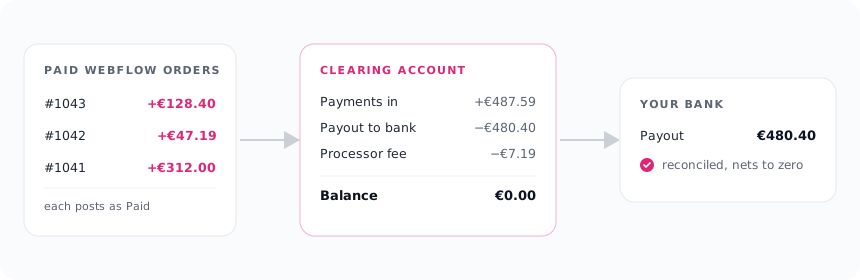
- Each order marks its invoice paid into the clearing account.
- When your processor pays out to your bank (a batch of orders, minus fees), you reconcile that single deposit against the clearing account.
- The clearing account nets back to roughly zero, and every order is accounted for.
That is exactly the workflow accountants expect, and it means your bank reconciliation is a two-minute match instead of a hunt.
Payouts and fees
A common worry: “if the invoice records the full order total, but the payout is net of fees, won’t things not balance?”
They balance, as long as you keep the two events separate:
- The invoice and its payment record what the customer actually paid, the full order total. That keeps each invoice reconciling to the cent against Webflow.
- The processor fee is a separate expense you record when the payout lands, not something baked into the order. Stripe and PayPal fees are your cost of doing business, not a discount to the customer.
So a good sync records the order total, not the net, and leaves fee handling to your normal payout reconciliation. Trying to net fees into the invoice is where a lot of DIY setups quietly go wrong, because the invoice no longer matches the order.
Where refunds fit
Refunds follow the same logic in reverse. A refunded order posts a credit note in Xero or a credit memo in QuickBooks, allocated against the original invoice, so revenue and receivables come back down by the right amount. The cash side of the refund (money leaving your processor) reconciles the same way a payout does.
A note on multiple currencies
If you sell in more than one currency, each order posts in its own currency and marks paid into a clearing account in that currency, provided your accounting organisation has multi-currency enabled. The reconciliation logic is identical; you just match each currency’s payout to its own clearing account. If an order’s currency is not set up in your organisation, it is better to hold that order with a clear message than to post it into the wrong currency, which is exactly what a reconcile-first sync does.
What “reconcile to the cent” actually does under the hood
It is worth being concrete about the guarantee, because building it taught us how easily a total goes wrong in a way that looks fine. Before an order is treated as synced, the posted invoice total is fetched back from Xero or QuickBooks and compared against what the customer actually paid. If they differ by even a cent, the invoice is voided and the order held with the reason. In testing we saw this catch a tax rounding and an unmapped tax code that each would have posted a total that was plausible but wrong, which is the worst kind of error precisely because nothing about it looks off until you reconcile. Checking the posted number against the paid number, every time, is what turns “the invoice is in” into “the invoice is right.”
What month-end looks like when it is set up right
Here is the payoff. With a clearing account mapped and a reconcile-to-the-cent sync running:
- Every synced invoice is already marked Paid, so there are no stale receivables to chase.
- Each processor payout matches a batch in the clearing account, so bank reconciliation is a handful of clean matches, not a spreadsheet.
- Anything that could not post cleanly (a missing tax code, a currency you have not enabled) is sitting as a clearly-labelled exception, not hidden inside a wrong number.
Month-end stops being an audit of everything and becomes a short review of a few flagged items.
When you can skip the clearing account
To be fair, not everyone needs the full setup. If you do very low volume and reconcile by hand anyway, mapping your main bank account directly is fine, invoices will show Paid, you will just match each order to the payout yourself. The clearing account earns its keep once you are doing enough orders that batched payouts and fees make one-to-one matching tedious.
Conclusion
Getting orders into Xero or QuickBooks is the part everyone thinks about. Getting them to show as paid, and reconciling the payout that actually hits your bank, is the part that decides whether your books are trustworthy or a monthly cleanup job. Map a clearing account, record the full order total, keep fees as a separate expense, and let a reconcile-first sync hold anything that would not balance. That is the whole workflow Xaldro is built to run for you, so paid orders look paid and month-end stays short.